> ## Documentation Index
> Fetch the complete documentation index at: https://docs-dev-docs-ai-docs-migration-poc.mintlify.site/llms.txt
> Use this file to discover all available pages before exploring further.
# System Center Operations Managerを使用してAD/LDAPコネクターを監視する
> System Center Operations Manager(SCOM)を使ってAD/LDAPコネクターを監視する方法を説明します。
Auth0のAD/LDAPコネクターは、Windowsベースのマシンでサービスとして実行することができます。
System Centerでは、他のサービスと同様に、サービスのステータスを監視することができます。
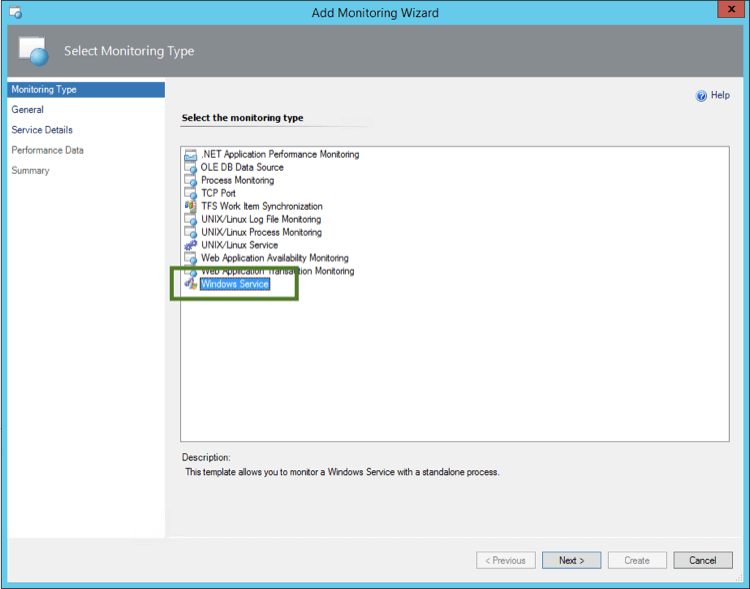
1. **[Add Monitoring Wizard(モニタリングウィザードの追加)]** を開いて、 **[Monitoring Type(モニタリングタイプ)][Windows Service(Windowsサービス)]** にを選択します。
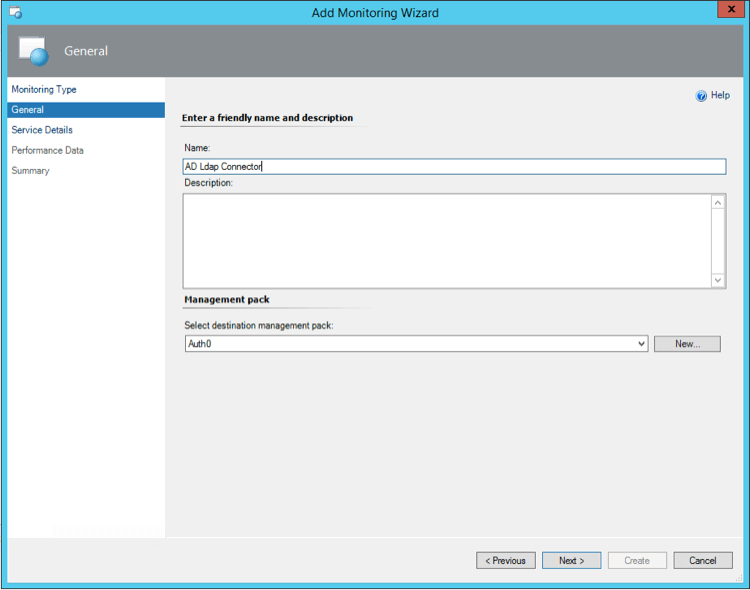
 2. 名前と説明を入力します。
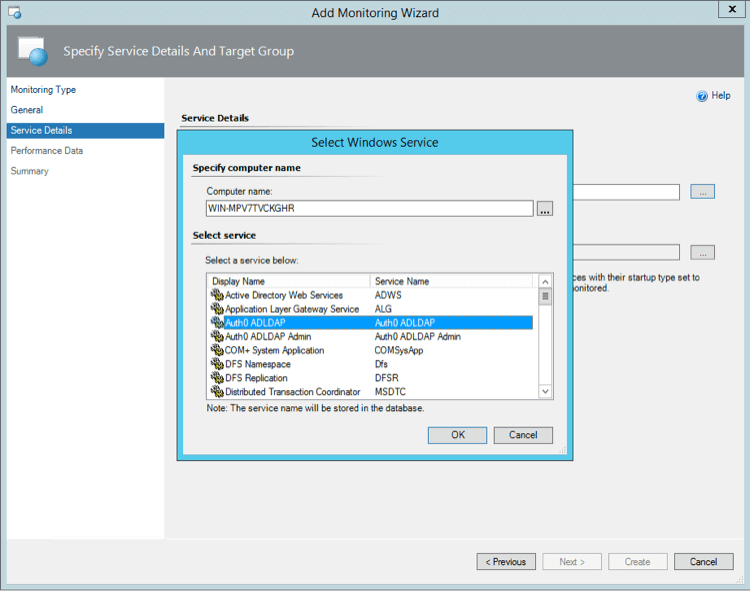
 3. AD/LDAPコネクターがインストールされているサーバーを選択し、 **[Auth0 ADLDAP]** を選択します。
 4. **CPU** と **Memory limits(メモリ制限)** の限度を選択します。たとえば、CPU 10%とRAM 200MBは警告のトリガーに適した値です。
また、認証をエンドツーエンドで監視する合成トランザクションをセットアップすることをお勧めします。
詳細については、「[SCOMを使用してAuth0を監視する](/docs/ja-jp/deploy-monitor/monitor/monitor-using-scom)」を参照してください。
## もっと詳しく
* [System Center Operations Managerを使用してAuth0を監視する](/docs/ja-jp/deploy-monitor/monitor/monitor-using-scom)
4. **CPU** と **Memory limits(メモリ制限)** の限度を選択します。たとえば、CPU 10%とRAM 200MBは警告のトリガーに適した値です。
また、認証をエンドツーエンドで監視する合成トランザクションをセットアップすることをお勧めします。
詳細については、「[SCOMを使用してAuth0を監視する](/docs/ja-jp/deploy-monitor/monitor/monitor-using-scom)」を参照してください。
## もっと詳しく
* [System Center Operations Managerを使用してAuth0を監視する](/docs/ja-jp/deploy-monitor/monitor/monitor-using-scom)